
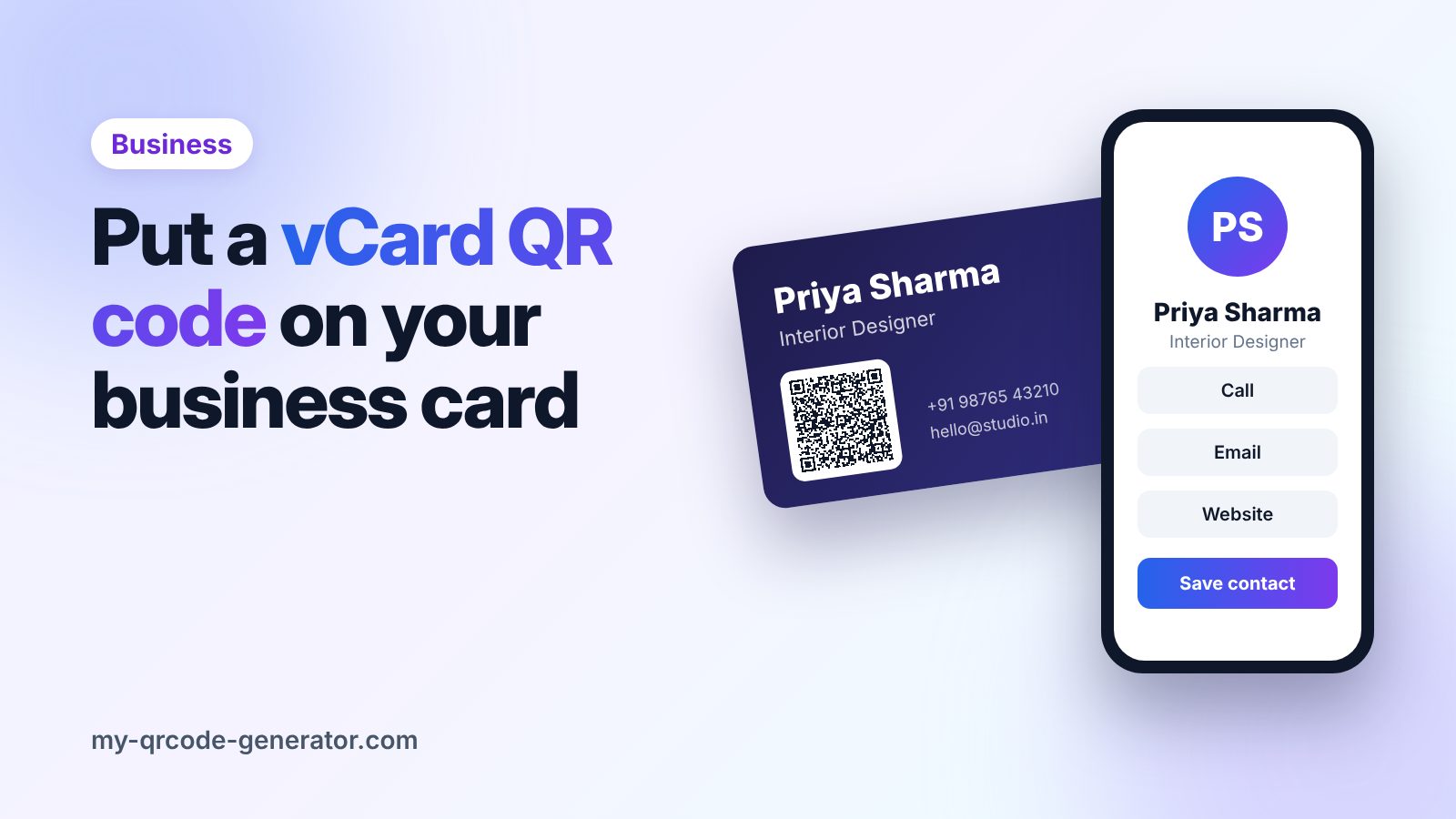
Most business cards end up in a drawer. The details on them almost never make it into a phone, because typing a name, number and email by hand takes effort. A vCard QR code removes that step: one scan and your contact card is ready to save.
This guide shows what a vCard QR code is, what to put in it, and how to design and print it so it works on every card you hand out.
What is a vCard QR code?
A vCard is the standard file format phones use for contacts. A vCard QR code shares that information. When someone scans it, their phone shows your details with a Save contact button. There is no app to install and nothing to type.
With My QR Code Generator, a vCard QR code opens a clean, mobile-friendly contact page. From there people can call you, email you, visit your website or save you to their contacts.
Why add one to your business card?
- Fewer lost contacts. People save you while you are still talking, not "later".
- No typos. Your number and email are copied exactly.
- More than fits on paper. Add a second phone number, your website and your full address without crowding the card.
- A modern first impression. It shows you make things easy for the people you meet.
What to include in your vCard
Only add what you want people to use. A good vCard usually has:
| Field | Include it? |
|---|---|
| First and last name | Always |
| Job title and company | Yes, it helps people remember you |
| Mobile number | Yes, the number you actually answer |
| Work phone | Only if it is different |
| Always | |
| Website | Yes, your site or portfolio |
| Address | Only if clients visit you |
Tip: Use international format for phone numbers (for example +91 98765 43210). It works wherever the person scanning is.
How to create a vCard QR code
- Sign in and click New QR in your dashboard.
- Choose the vCard type.
- Fill in your name, job title, company, phone, email and website.
- Customize the colors and add your logo if you like.
- Download the QR code as a high-resolution PNG and send it to your designer or printer.
The vCard type is part of our paid plans. Because it is a dynamic QR code, you can update your details later (a new phone number, a new job title) without reprinting your cards. You can also see how many people scanned it.
Design tips for the card
Give it space. A QR code needs a clear margin (the "quiet zone") on all four sides. Do not let text, borders or patterns touch it.
Keep it big enough. On a standard business card, make the code at least 2 × 2 cm. Read our QR code print size guide for more detail.
Use strong contrast. A dark code on a light background scans best. Avoid light grey, gold foil or pastel colors for the code itself.
Add a short call to action. A small line like "Scan to save my contact" tells people what will happen. Without it, many will not scan.
Front or back? If your card is busy on the front, put the QR code on the back with plenty of white space around it.
Common mistakes to avoid
- Printing before testing. Always scan a printed proof with an iPhone and an Android phone before the full run.
- Using a static code full of data. A static vCard stores every field inside the pattern. The more you add, the denser and harder to scan it gets. A dynamic vCard stays simple because it only stores a short link.
- Shrinking the code to fit the design. If it does not fit at 2 cm, simplify the card, not the code.
- Forgetting to update your details. If you change jobs or numbers, update the vCard in your dashboard so old cards keep working.
Where else to use your vCard QR code
The same code works beyond business cards:
- Email signatures and LinkedIn banners
- Name badges at conferences and trade shows
- Shop counters, so customers can save your number
- Brochures and proposals you send to clients
Ready to make yours? Create a vCard QR code in a couple of minutes and add it to your next print run.
Frequently asked questions
Does the person scanning need an app?
No. The built-in camera app on modern iPhones and Android phones reads QR codes and opens your contact page directly.
Can I change my details after printing the cards?
Yes, if you use a dynamic vCard QR code. Update your details in the dashboard and the same printed code shows the new information.
What size should a vCard QR code be on a business card?
At least 2 × 2 cm (about 0.8 inch), with a clear margin around it. Test-scan a printed proof before ordering the full batch.
Written by
My QR Code Generator Team
We build My QR Code Generator and help businesses create, design and track QR codes for menus, business cards, packaging and marketing campaigns. Every guide is based on what we see working for our users.
About My QR Code Generator