
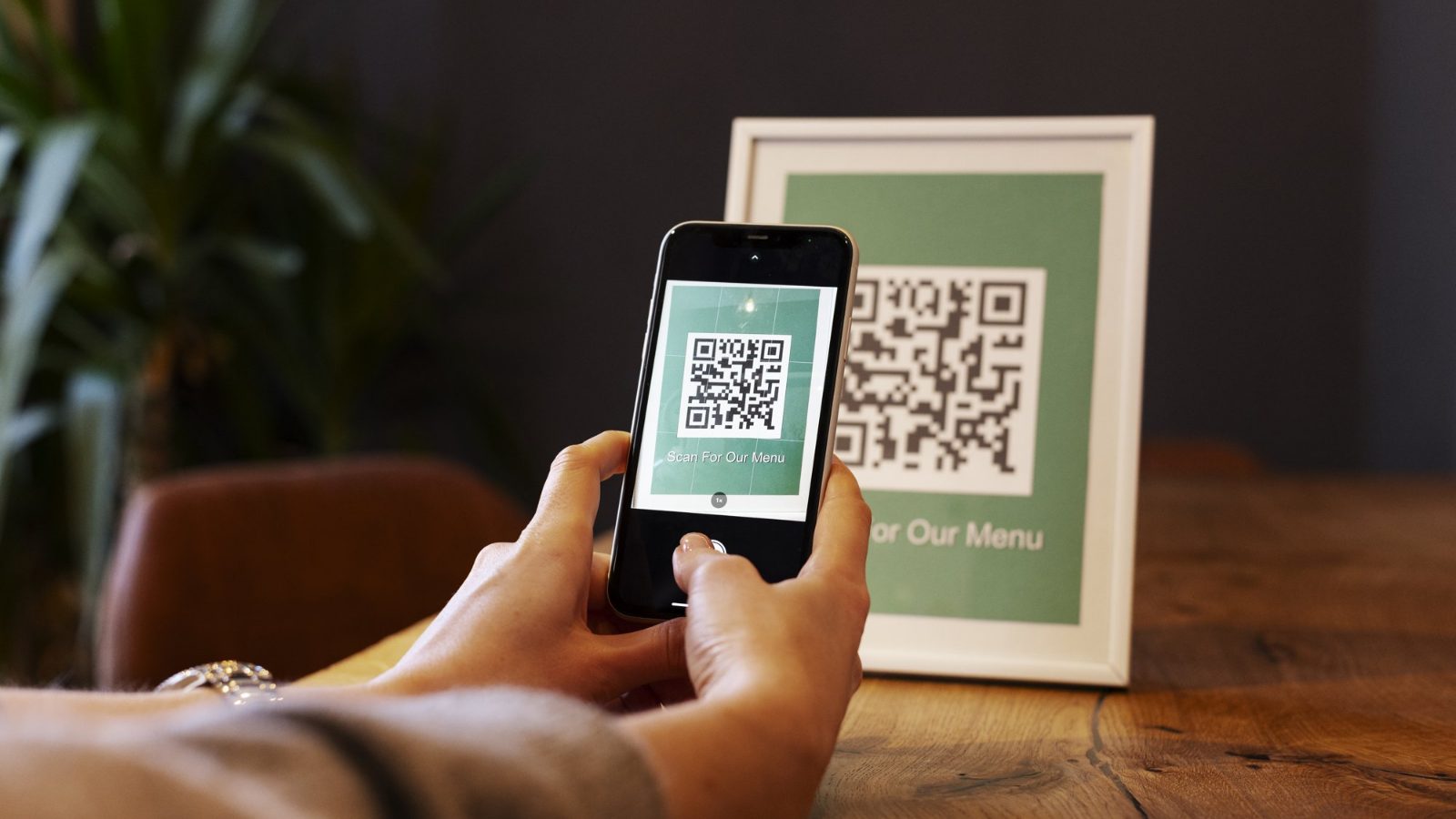
A QR code menu lets guests open your menu on their phone in one scan. It saves printing costs, keeps menus clean, and — if you use a dynamic code — lets you update dishes and prices without reprinting anything.
Why restaurants use QR code menus
- Update anytime: change prices, sold-out dishes or the daily special in seconds.
- Lower printing costs: print the QR code once, not a new menu every season.
- Faster service: guests can browse while they wait for a server.
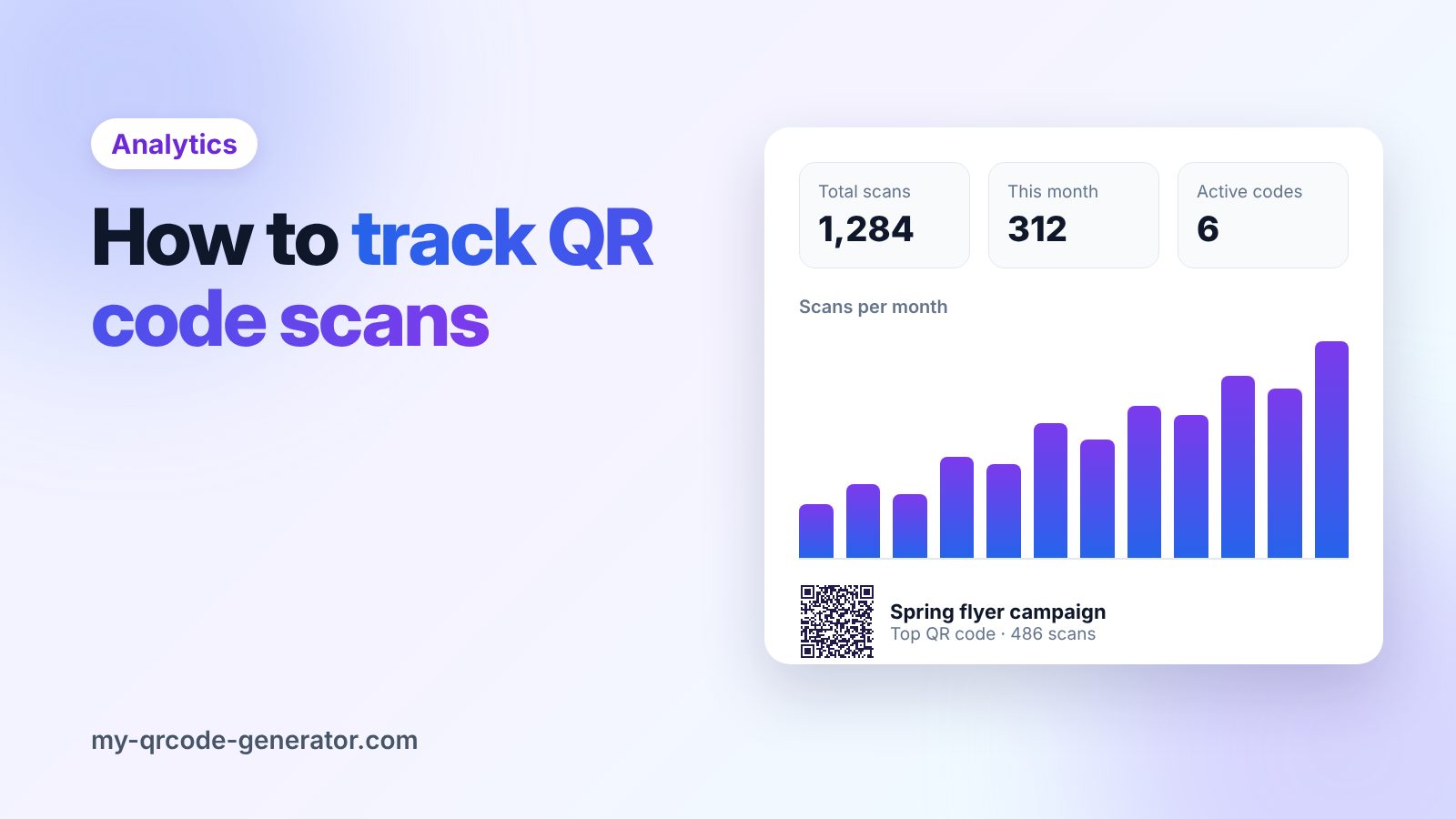
- Know your traffic: scan statistics show when and how often guests open the menu.
Tip: Keep a few printed menus available for guests who prefer paper or whose phone battery is low.
Step 1: Prepare your menu
You have two good options:
- Upload a PDF of your existing menu. This is the fastest route if you already have a designed menu. Use the PDF QR code type.
- Build a mobile menu page with sections, dishes and prices using the menu QR code type. This is easier to read on a phone than a large PDF.
Whichever you choose, keep the file light. A huge PDF loads slowly on mobile data.
Step 2: Create the QR code
- Log in and click New QR.
- Choose Menu (or PDF).
- Add your restaurant name, menu sections and dishes, or upload your PDF.
- Make sure the code is dynamic, so you can edit the menu later without a new code.
Step 3: Design it to match your brand
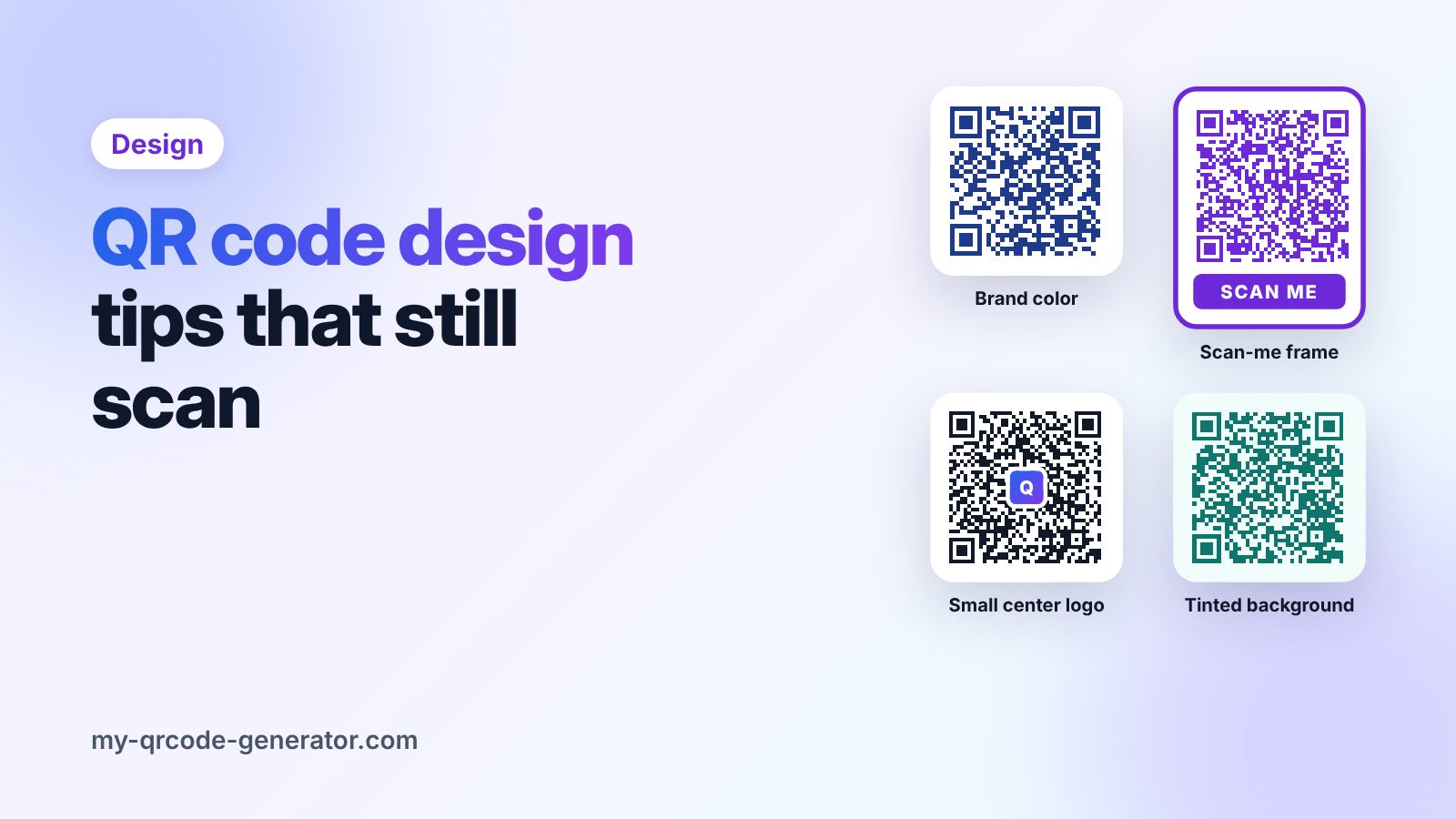
Use your brand colors and add your logo in the middle of the code. Keep enough contrast between the dark squares and the background — dark code on a light background scans most reliably.
Add a short call to action next to the code, for example: "Scan to see our menu." People scan more when they know what they will get.
Step 4: Print and place it well
| Placement | Recommended code size |
|---|---|
| Table tent or table sticker | 3–4 cm (about 1.2–1.6 in) |
| Front window or entrance | 8–10 cm (about 3–4 in) or larger |
| Counter or takeaway bag | 2.5–3 cm (about 1 in) |
Place codes where guests naturally look: on the table, at the entrance and near the counter. Avoid glossy laminate that reflects light directly into the camera.
Step 5: Test and track
Scan every printed code with an iPhone and an Android phone before you put it out. After launch, check your dashboard to see scans by day — it is a simple way to spot your busiest times.
Frequently asked questions
Can I change my menu after printing the QR code?
Yes, if you create a dynamic menu QR code. Edit the menu in your dashboard and every printed code shows the new version straight away.
Do guests need an app to scan the menu?
No. Modern iPhone and Android phones scan QR codes directly with the built-in camera app.
Should I use a PDF or a mobile menu page?
A mobile menu page is easier to read on a phone. A PDF is quicker if you already have a designed menu. Both work with a dynamic QR code.
Written by
MyQR Team
We build My QR Code Generator and help businesses create, design and track QR codes for menus, business cards, packaging and marketing campaigns. Every guide is based on what we see working for our users.
About My QR Code Generator